
Automating BrandChamp Actions with Workflows
Workflow Automation helps you automate repetitive ambassador program tasks. You can define which BrandChamps should qualify and automatically perform actions such as updating tags or sending emails.
There are two ways to start a workflow:
- Scheduled Workflows run at a date and time you define, for example, every Monday at 10:00 AM.
- Real-Time Workflows run when a specific event happens in your program, for example, when a BrandChamp completes an activity or has a referral applied.
This gives you the flexibility to automate both recurring program management and actions that should happen immediately.

Common Use Cases
You can use workflows to:
- Tag inactive users who haven't participated in 30+ days, and send a re-engagement email
- Promote ambassadors who've completed 5+ activities
- Send a welcome or follow-up email after an important activity is completed
- Tag BrandChamps when they complete specific activities
- Recognize BrandChamps once a referral commission is confirmed and credited
- Send timely emails after important program events
- Update tags based on participation, status, or performance
- Combine tagging and email actions within the same workflow
How Workflows Work
Every workflow has three main parts:
- When it runs - Choose a schedule or a real-time trigger.
- Who qualifies - Use BrandChamp filters (for Scheduled Workflows) or additional criteria (for Real-Time Workflows) to control who receives the actions.
- What happens - Add one or more actions, such as updating tags or sending an email.
The exact behavior depends on whether you're creating a Scheduled or Real-Time Workflow.
Scheduled Workflows
Scheduled Workflows run at the date and time you define. They're useful when you want to periodically evaluate a group of BrandChamps and take action.
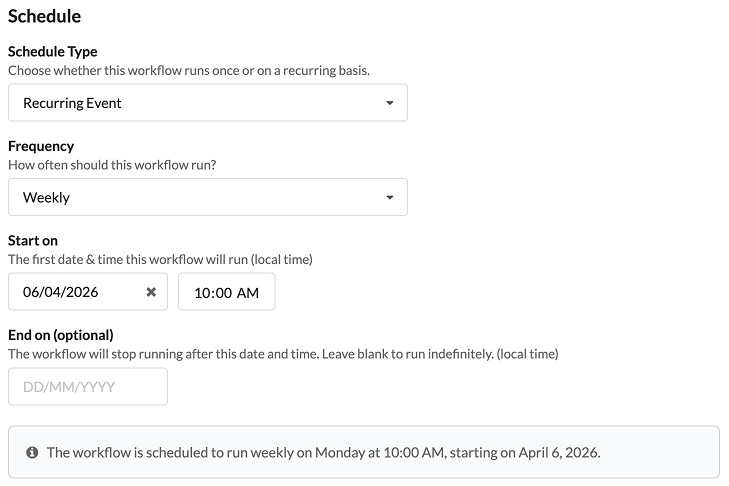
Example: Every Monday → Find BrandChamps with no activity in the last 30 days → Add "Inactive" tag → Send re-engagement email.
Available schedules:
- Daily
- Weekly
- Monthly
- Every 3 months
- Yearly
- One-time
You can choose a start date and time, recurring period or one time period and optionally define an end date for a recurring workflow. The system will show a clear message describing how the schedule will behave (e.g., "This workflow is scheduled to run weekly on Monday at 10:00 AM starting on October 27, 2025.")
Scheduled Workflows do not react instantly to individual actions - they only run at the time you've set. At that time, the system reviews all BrandChamps matching your filters, applies the actions, and logs the results.
Real-Time Workflows
Real-Time Workflows start the moment a specific event occurs.
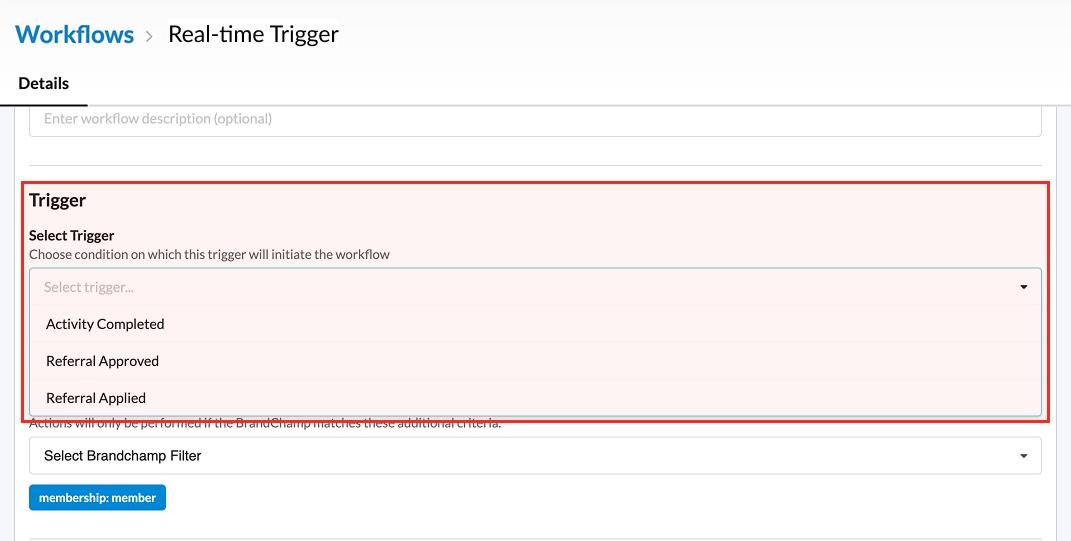
The following real-time triggers are currently available:
Activity Completed
Starts the workflow when a BrandChamp completes an activity. You can choose:
- All Activities - trigger whenever any activity is completed
- Selected Activities - trigger only when one of the activities you select is completed (you can select multiple)
Example: BrandChamp completes "Create an Instagram Post" → Add "Content Creator" tag → Send congratulations email.
Referral Approved
Starts the workflow when a referral is marked as approved. For most referrals, this happens immediately when the order is detected, based on your default action settings (Settings → Referrals → "When a new referral is detected, what is the default action?")
Referral Applied
Starts the workflow when the referral's commission has been credited to the BrandChamp's account, after your configured waiting period (Settings → Referrals → "Days to wait before applying referral credit," default 0 days). Once a referral is applied, it cannot be deleted.
Example: Referral applied → Add "Top Referrer" tag → Send congratulations email.
Using Criteria to Select BrandChamps
Both Scheduled and Real-Time Workflows use the same BrandChamp filters to decide who's included - the difference is when and how that filter is checked.
For Scheduled Workflows, the filter defines your audience. When the workflow runs, the system checks all BrandChamps against your filter and applies the actions to everyone who matches at that time. You'll see a live count of matching members while setting it up.
For Real-Time Workflows, the filter acts as additional criteria layered on top of the trigger. The trigger determines when the workflow runs; the criteria determine whether the configured actions should be performed for that specific BrandChamp.
Example (Real-Time):
- Trigger: Activity Completed
- Activities: Selected Activities
- Additional Criteria: BrandChamp has "VIP" tag
- Actions: Send email
When one of the selected activities is completed, the workflow runs. The action is only performed if that BrandChamp also has the "VIP" tag. If they don't, the workflow is triggered but no action is taken.
Example (Scheduled):
- Schedule: Weekly, every Monday
- Filter: Days in program < 2
- Actions: Add "Newbie" tag
Every Monday, the system finds everyone who matches the filter (recently joined) and applies the tag.
What Can Workflows Do?
Available actions:
- Add Tags
- Remove Tags
- Replace Tags (replace all existing tags)
- Send Email (requires a verified custom email domain)
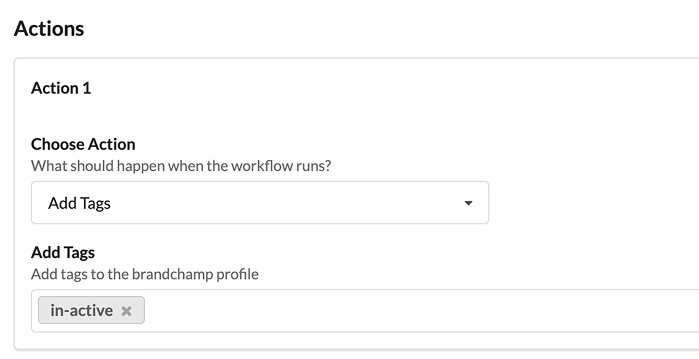
You can combine multiple actions in a single workflow, for example, adding a tag and sending an email at the same time.
Sending Emails via Workflows
You can include email as part of a workflow to:
- Send inactivity reminders
- Congratulate top performers
- Notify ambassadors of status updates
- Run recurring campaigns automatically

When adding the Email action: write your subject and message, use personalization tokens if needed, and preview the email before activating.
Important: To send emails through workflows, you must set up and verify a custom email sending domain in your Email Settings. If your domain isn't verified, you can save the workflow as a draft, but you can't activate it until verification is complete.
Creating a Workflow
- Create your workflow. Go to Settings → Workflows → Add Workflow.
- Choose when the workflow should run. Choose between Scheduled or Real-Time.
- For Scheduled Workflows, configure the frequency, start date, and time.
- For Real-Time Workflows, select the event that should trigger the workflow.
- Define your audience or additional criteria.
- For Scheduled Workflows, use BrandChamp filters to determine who's included when the workflow runs. You'll see a live count of matching members.
- For Real-Time Workflows, optionally add criteria the individual BrandChamp must match before actions are performed.
- Add actions. Add one or more actions (Add Tags, Remove Tags, Replace Tags, Send Email). You can combine multiple actions in the same workflow.
- Save your workflow. Once active, BrandChamp will automatically run the workflow based on its configured schedule or trigger.
Managing and Reviewing Workflows
From the Workflows page, you can see your Scheduled and Real-Time Workflows together. You can:
- View workflow status
- See its schedule or trigger
- Pause or delete workflows
- Open a workflow to review or edit its filters, criteria, or actions
Each workflow also includes:
- A Workflow Runs tab, showing when the workflow ran
- A Workflow Logs tab, with detailed breakdowns (BrandChamp, action taken, time, etc.)
For Real-Time Workflows, remember that a workflow can be triggered without performing an action, if the BrandChamp doesn't meet your additional criteria.
Scheduled vs. Real-Time: Which Should I Use?
Use a Scheduled Workflow when you want to periodically evaluate your BrandChamp base. Example: Every Monday, find everyone who hasn't completed an activity in 30 days.
Use a Real-Time Workflow when you want something to happen in response to an individual event. Example: When someone completes an activity, immediately tag them and send an email.
Both workflow types can be used together to automate different parts of your ambassador program.
Special Notes on Scheduling
- If you select the 31st and a month has fewer days, the workflow will run on the last valid day (e.g., Feb 28 or Apr 30).
- For leap years, a workflow scheduled for Feb 29 will run on Feb 28 in non-leap years.
- All workflow schedules are based on the local time zone set in your platform's General Settings. For example, if your local time zone is Pacific Time (PST), a workflow scheduled for 10:00 AM will run at 10:00 AM PST.
FAQs
Can I use multiple filters? Yes, you can combine multiple filters.
Can I select multiple activities for the Activity Completed trigger? Yes. You can trigger the workflow for all activities or select multiple specific activities.
Can I add BrandChamp filters to a Real-Time Workflow? Yes. These act as additional criteria. When the trigger occurs, actions are only performed if the BrandChamp also matches those criteria.
Can I add multiple actions? Yes. For example, the same workflow can update a tag and send an email.
Can I still use Scheduled Workflows? Yes. Real-Time Workflows are an additional option and don't replace Scheduled Workflows.
Can I run a workflow manually? Not at this time. Workflows run automatically, based on their schedule or trigger.
Pro tip for testing: To test a Scheduled Workflow's filters, set the Schedule Type to "One Time" and schedule it a few minutes in the future. You can confirm it works as expected on a small test group before applying it to your full audience.
Are more actions or triggers coming? Yes! We plan to expand available real-time triggers and actions (such as push notifications and reward assignment) over time.