
How to Create and Manage Leaderboards
Leaderboards encourage friendly competition by helping BrandChamps see how their performance compares with others in your community.
With Leaderboards 2.0, you can create multiple leaderboards, control who participates in each one, select different ranking criteria and time periods, and even combine multiple performance metrics into a unified score.
What can you do with Leaderboards 2.0?
You can:
- Create multiple leaderboards for different audiences or campaigns
- Target leaderboards to BrandChamps using tags
- Rank BrandChamps by approved activities, referrals, points earned, or a combination of these metrics
- Offer weekly, monthly, quarterly, and yearly leaderboard views
- Display ranking metrics separately or combine them into a unified score
- Control the order in which leaderboards appear to BrandChamps
For example, you could create separate leaderboards for:
- Different countries or regions
- New and long-standing BrandChamps
- Membership tiers, such as Gold or Silver
- Specific interests or campaign groups
- Seasonal challenges or competitions
Create a new leaderboard
- From the admin portal, go to Community → Leaderboards.
- Click New Leaderboard.
- Enter a title that clearly describes the leaderboard, such as “US BrandChamps,” “Gold Tier,” or “Summer Challenge.”
- Configure the leaderboard using the options described below.
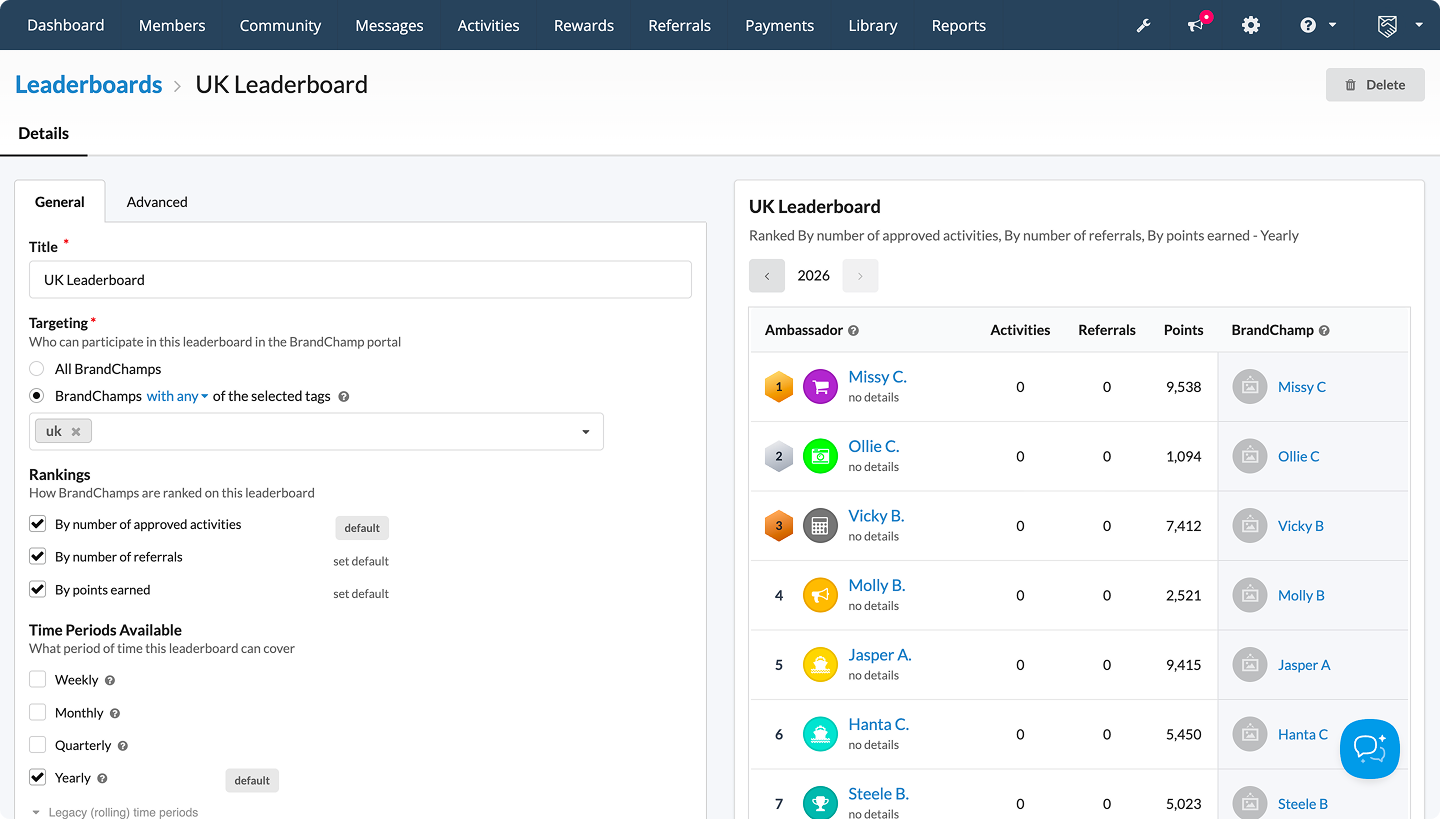
- Review the Leaderboard preview on the right.
- Click Save.
Choose who can participate
Under Targeting, select the BrandChamps who should participate in the leaderboard.
You can include:
- All BrandChamps: The leaderboard is available to everyone in your program.
- BrandChamps with selected tags: The leaderboard only includes BrandChamps who match the selected tag targeting.
Tag targeting allows you to create more relevant competition. For example, you can create one leaderboard for US BrandChamps and another for UK BrandChamps, or separate leaderboards for Gold and Silver members.
Only eligible BrandChamps can access and participate in a targeted leaderboard.
Choose how BrandChamps are ranked
Under Rankings, select one or more performance metrics:
- By number of approved activities
- By number of referrals
- By points earned
If you select multiple metrics, choose one as the default. The default metric determines the initial ranking BrandChamps see when they open the leaderboard.
Depending on your Advanced settings, the selected metrics can either appear as separate ranking views or contribute to one unified score.
Select the available time periods
Choose one or more periods that BrandChamps can use to view their rankings:
- Weekly: Starts again every Monday
- Monthly: Starts again on the first day of each month
- Quarterly: Starts again on the first day of each calendar quarter
- Yearly: Starts again on January 1 each year
Select one period as the default view. BrandChamps can switch between any other time periods you make available.
Shorter periods, such as weekly or monthly leaderboards, can give more BrandChamps an opportunity to reach the top and help maintain ongoing engagement.
Legacy rolling periods
Legacy rolling time periods are also available. Unlike calendar-based periods, these calculate performance over a continuously moving window.
For example, a rolling seven-day leaderboard always includes the previous seven days, regardless of the current day of the week.
Use the new calendar-based periods when you want rankings to restart on predictable dates. Continue using legacy periods when a rolling performance window better suits your program.
Set the leaderboard order
Use Sort Order to control where the leaderboard appears in the list shown to BrandChamps.
This is particularly useful when a BrandChamp is eligible for multiple leaderboards. Leaderboards with a higher position appear before those with a lower position.
Configure the ranking display - Advance options
Open the Advanced tab to choose how multiple ranking metrics are displayed.
Show rankings separately
This option displays each selected metric independently.
For example, if you select approved activities, referrals, and points earned, BrandChamps can view their rankings for each metric separately.
Use this option when you want each type of performance to remain easy to understand and compare.
Show a unified score
This option combines all selected ranking metrics into a single score.
Because activities, referrals, and points may use very different scales, you can assign a score value to each metric under Score Attribution.
For example:
- 1 point earned = 1 leaderboard score
- 1 approved activity = 50 leaderboard score
- 1 referral = 100 leaderboard score
A BrandChamp with 500 points, 4 approved activities, and 3 referrals would receive:
500 + (4 × 50) + (3 × 100) = 1,000 leaderboard score
The unified score determines the BrandChamp’s overall position on the leaderboard.
Choose attribution values carefully so that the score reflects the behaviors that matter most to your program. If referrals are your primary goal, for example, you can give each referral a higher score contribution than an approved activity.
If you are not too sure about setting up advance feature of Leaderboard, please reach out to our custom support, we'll help you set it up.
Preview your leaderboard
The Leaderboard preview updates as you configure the leaderboard. Use it to confirm:
- Which ranking information will be displayed
- How BrandChamps will be ordered
- Whether metrics appear separately or as a unified score
- Which time period is selected by default
The preview also shows where the currently logged-in admin would appear when applicable.
What BrandChamps see
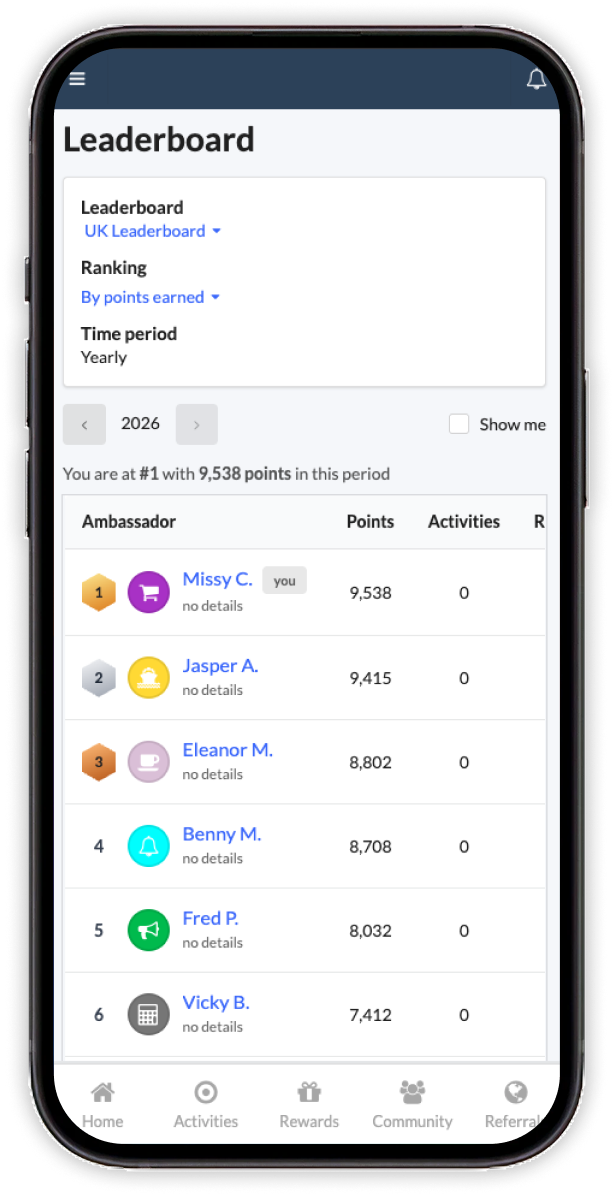
Eligible BrandChamps can view available leaderboards from their portal dashboard.
If they can access multiple leaderboards, they can:
- Switch between eligible leaderboards
- View their current position
- See the highest-ranking members
- Switch between available ranking metrics when rankings are shown separately
- Switch between the time periods you enabled
Targeted leaderboards help BrandChamps compare their performance with a more relevant peer group rather than competing only against the entire community.
Edit an existing leaderboard
To update a leaderboard:
- Go to Community → Leaderboards.
- Select the leaderboard you want to update.
- Adjust its targeting, rankings, time periods, sort order, or Advanced settings.
- Review the updated preview.
- Click Save.
Changes affect how the leaderboard appears and how eligible BrandChamps are ranked.